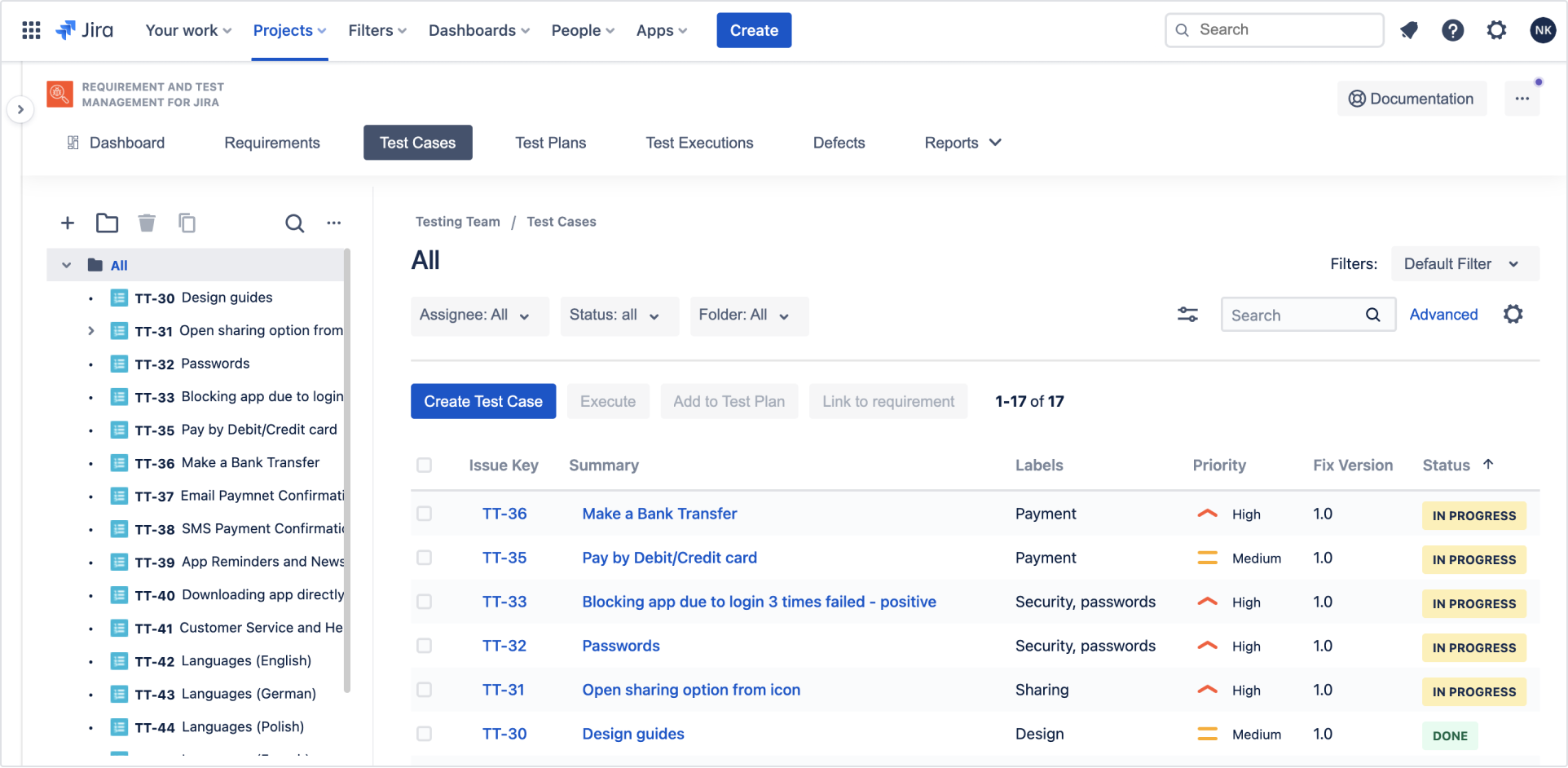
This chapter provides basic information about Test Cases.
Test Case is a specific set of conditions, inputs, steps, and expected results used to verify that a feature or function in a system works correctly. Each Test Case can cover few Requirements. Test Cases are grouped in Test Plans. One Test Case can be linked with several Test Plans.
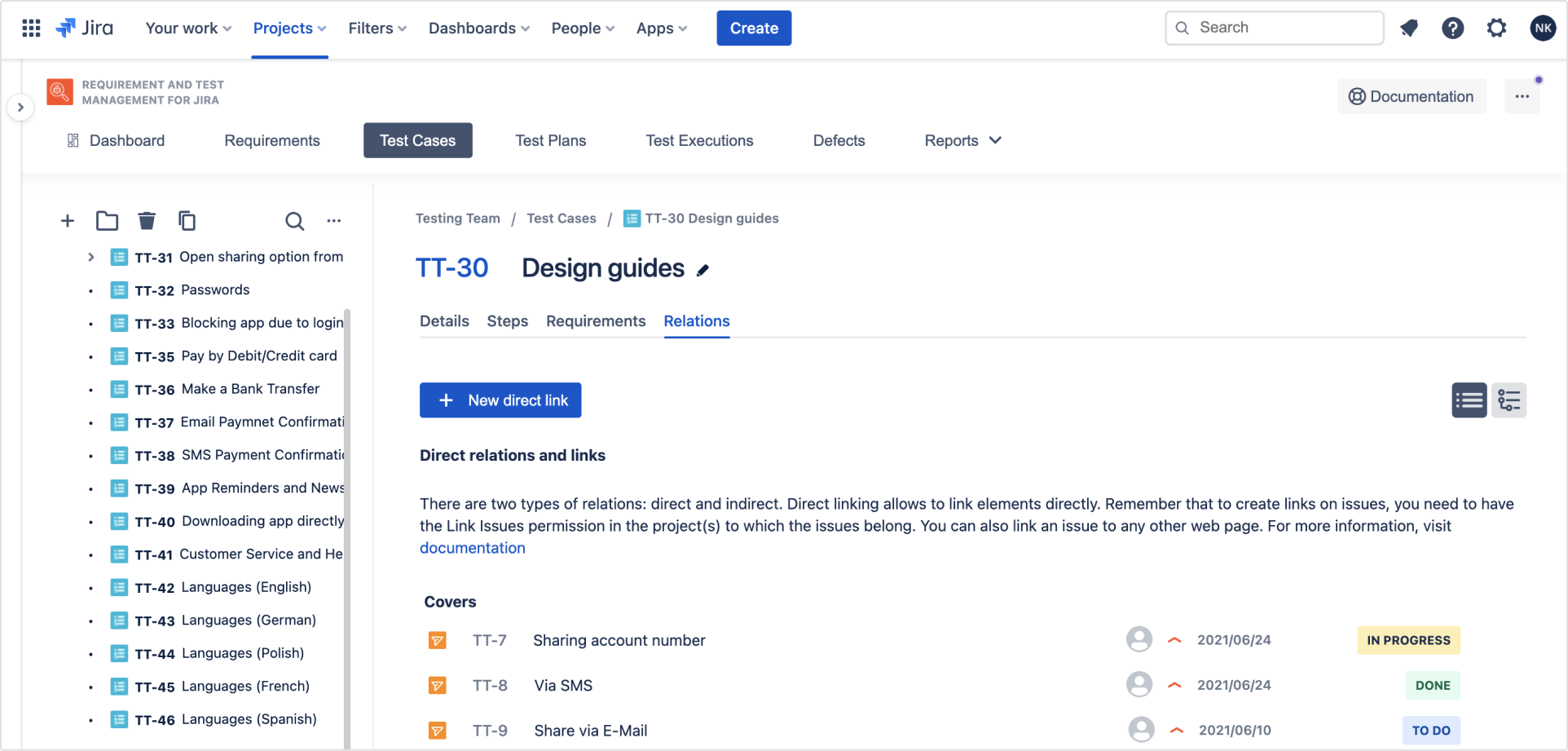
To navigate to the Test Cases tab:
Go to the RTM (Test Management) app.
Click Test Cases tab.
Filters
Click any folder to display the available filtering options that help you navigate the Test Case database. Filters are available in the default view. How to make your work easier using filters:
Click funnel to select criteria you need. Then select specific filters from a drop-down lists. If you want to reset all selected filters click Clear all.
Turn the Hide toggle on to hide the filters section in point 1.
Turn the Use on tree toggle on to use filters also on the Test Cases tree.
Click Save to store a configured set of filters, and switch between different filters by choosing them from the drop-down list. Click arrow next to the Save button to name filters, discard changes, and manage saved filters.
Switch between Default view and List view.
Use JQL to filter Test Cases.
Filters in Test Cases tab.
Features
Click the folder All to see the main features of the Test Cases tab:
Tree and tree options - database of all Test Cases in the RTM and the options available for managing them.
Filters - allows to display Test Cases that meet the selected criteria.
Create Test Case - creates Test Cases manually.
Create Test Case (AI) - creates Test Cases using AI from Requirements.
Create execution - creates Test Plan and Test Execution from selected Test Cases.
Add to Test Plan - adds selected Test Cases to available Test Plans. Every Test Case can be added to multiple Test Plans.
Link to requirement - links Test Cases to available Requirements. Every Test Case can cover multiple Requirements.
… - more options linke: Show JQL, Clone, Export TCE’s results, Export to CSV, Move on tree, Set test key, Open in Issue Navigator, and Delete.
x column(s) - manages the currently displayed columns.
Main features of the Test Cases tab.
Note
Test Cases need to be added to a Test Plan to be executed.
Need help?
If you can’t find the answer you need in our documentation, raise a support request. Include as much information as possible to help our support team resolve your issue faster.