This chapter provides information on how to use coverage.
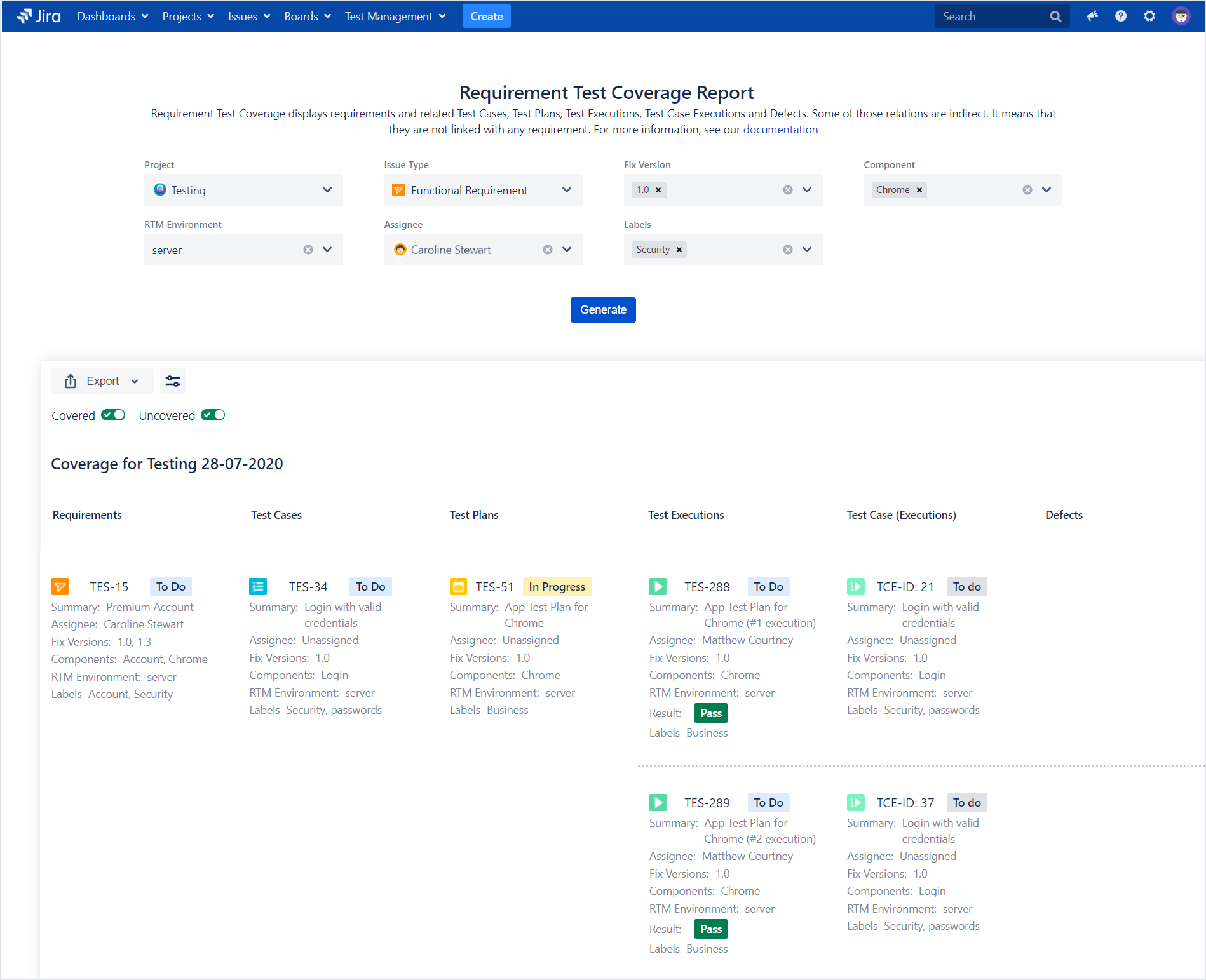
The Requirement Coverage Report gives you the possibility to track whether the requirements are already covered or uncovered by Test Cases, Test Plans, Test Executions, Test Case Executions, and Defects for a given: Project, Issue Type, Fix Version, Component, RTM Environment, Assignee, and Labels.
Steps
To create Requirement Coverage Report:
Navigate to Project > RTM.
In the Reports section, click Coverage.
Configure the following:
Project
Issue Type
Fix Version
Component
RTM Environment
Assignee
Labels Coverage report with Requirements and Test Management for Jira app
Info
You can also navigate to Test Management and select Coverage from the Reports section.
Go to traceability matrix with Requirements and Test Management for Jira app
Click Generate.
Coverage report with Requirements and Test Management for Jira appResult
Requirement Coverage Report has been created. Now you can filter covered and uncovered requirements.
Coverage report with Requirements and Test Management for Jira app
Tip
To quickly navigate to the Requirement, Test Case, Test Plan, etc., click on the issue key.
You can export Requirements Coverage Report to .pdf or .csv file by clicking on target Export file format.
You can choose which fields will be displayed in report: Assignee, Components, Fix Versions, RTM Environment, Status, Result, and Labels. Simply click on Preferences icon (near Export icon) and choose fields in Configuration Issue Card.
Coverage report with Requirements and Test Management for Jira app
If you can’t find the answer you need in our documentation, raise a support request*.
*Include as much information as possible to help our support team resolve your issue faster.


 Info
Info