

- Get started
- About
- Supported fields
- Migration to Cloud
- User's guide
- Customer's view
- Approvals page
- Configuration
- General Configuration
- Scopes
- Fields configuration
- Filters management
Requests
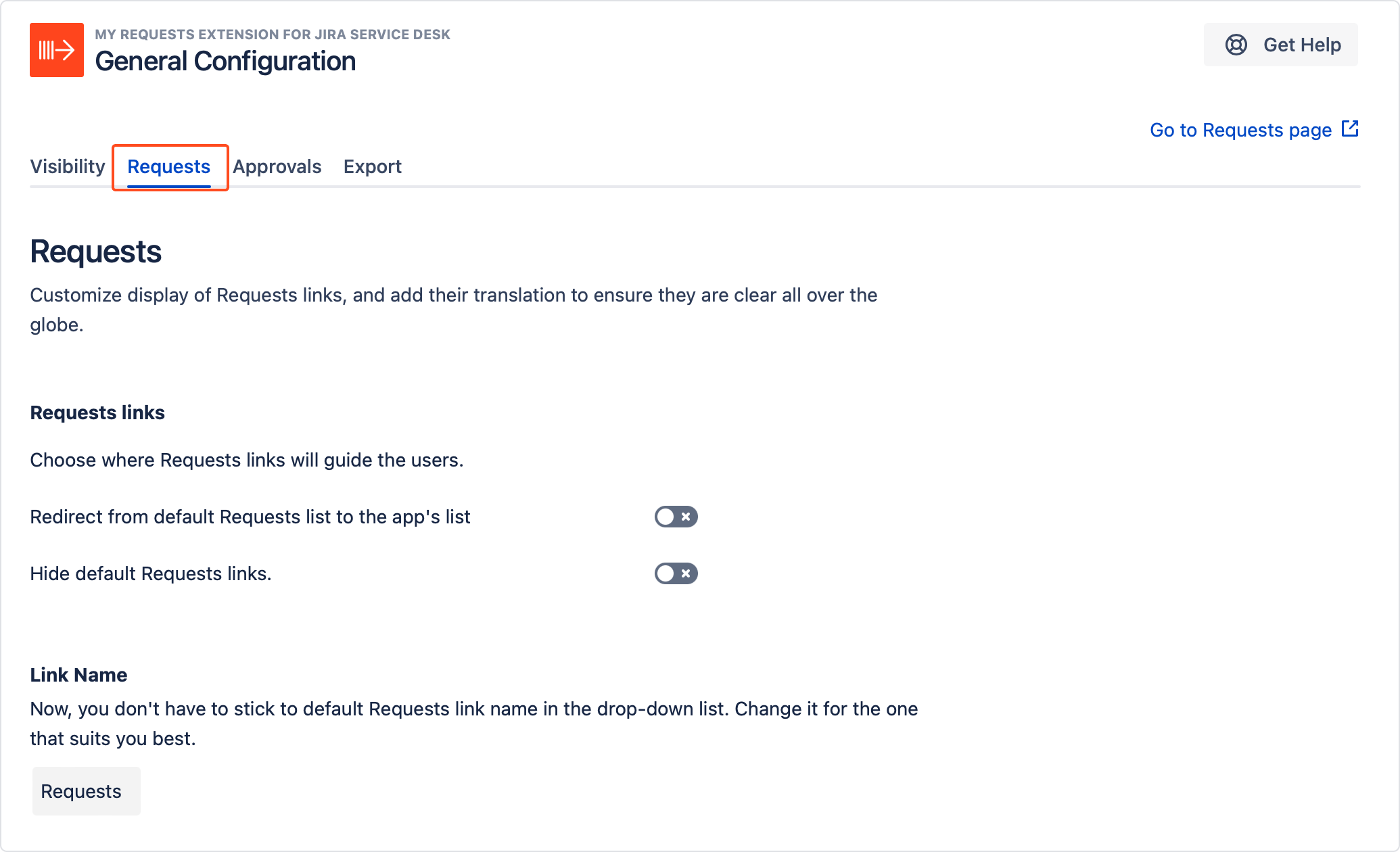
You can specify the properties of the Requests links such as behaviour, custom name and translations. In order to fully customize your links, access the Requests links page first.
Steps
- From the top navigation bar, choose Jira Administration > Manage apps.
- On the left sidebar, scroll down to My Requests Extension and select General Configuration.
- Click on the Requests links tab.
Link behaviour
Use the toggles shown below to specify the behaviour of the default Requests link.
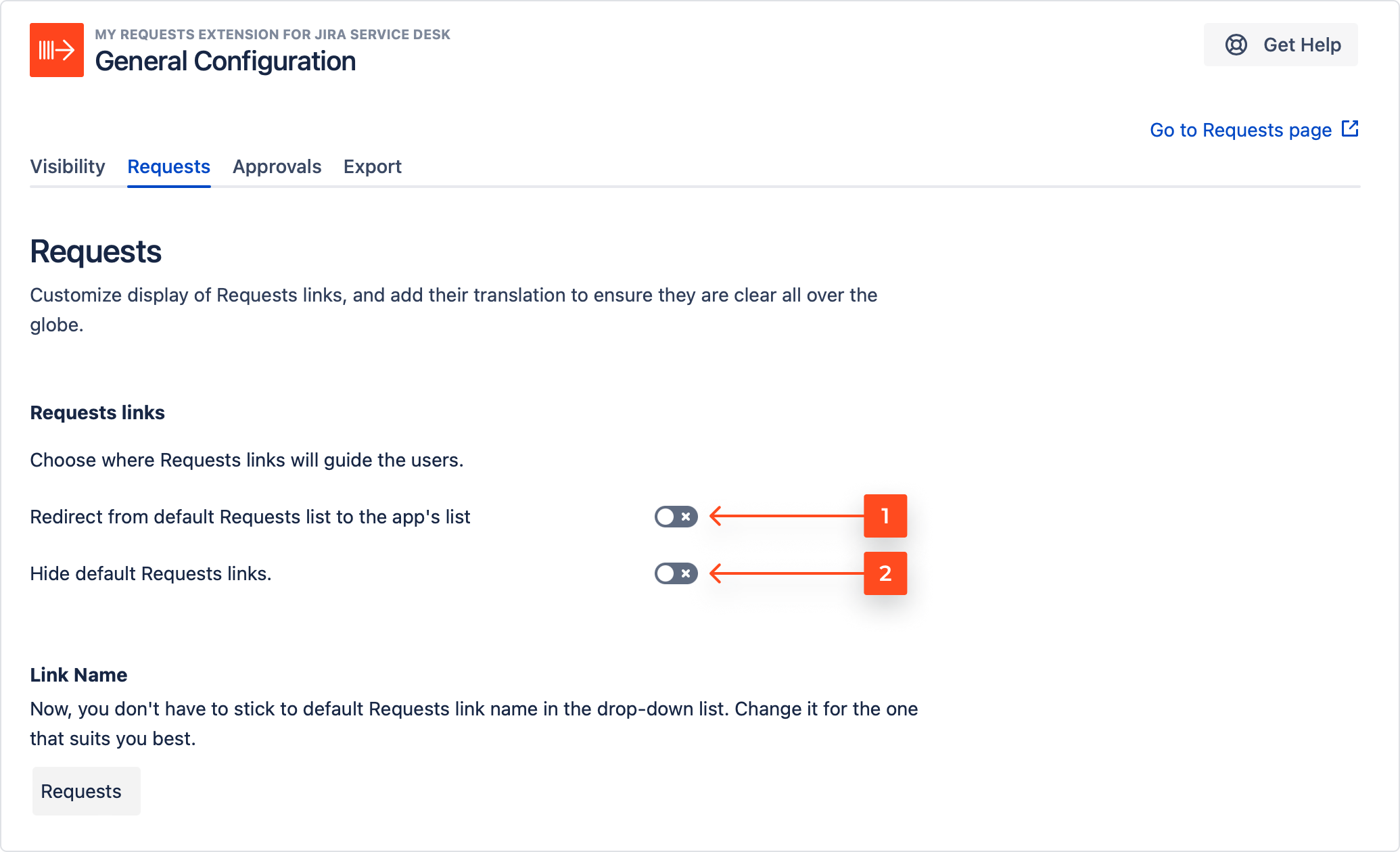
- Switch on the toggle to make the link redirect customers to the app’s Requests page.
- Switch on the second toggle to hide the default Requests link from the Customer Portal drop-down list.
Link name
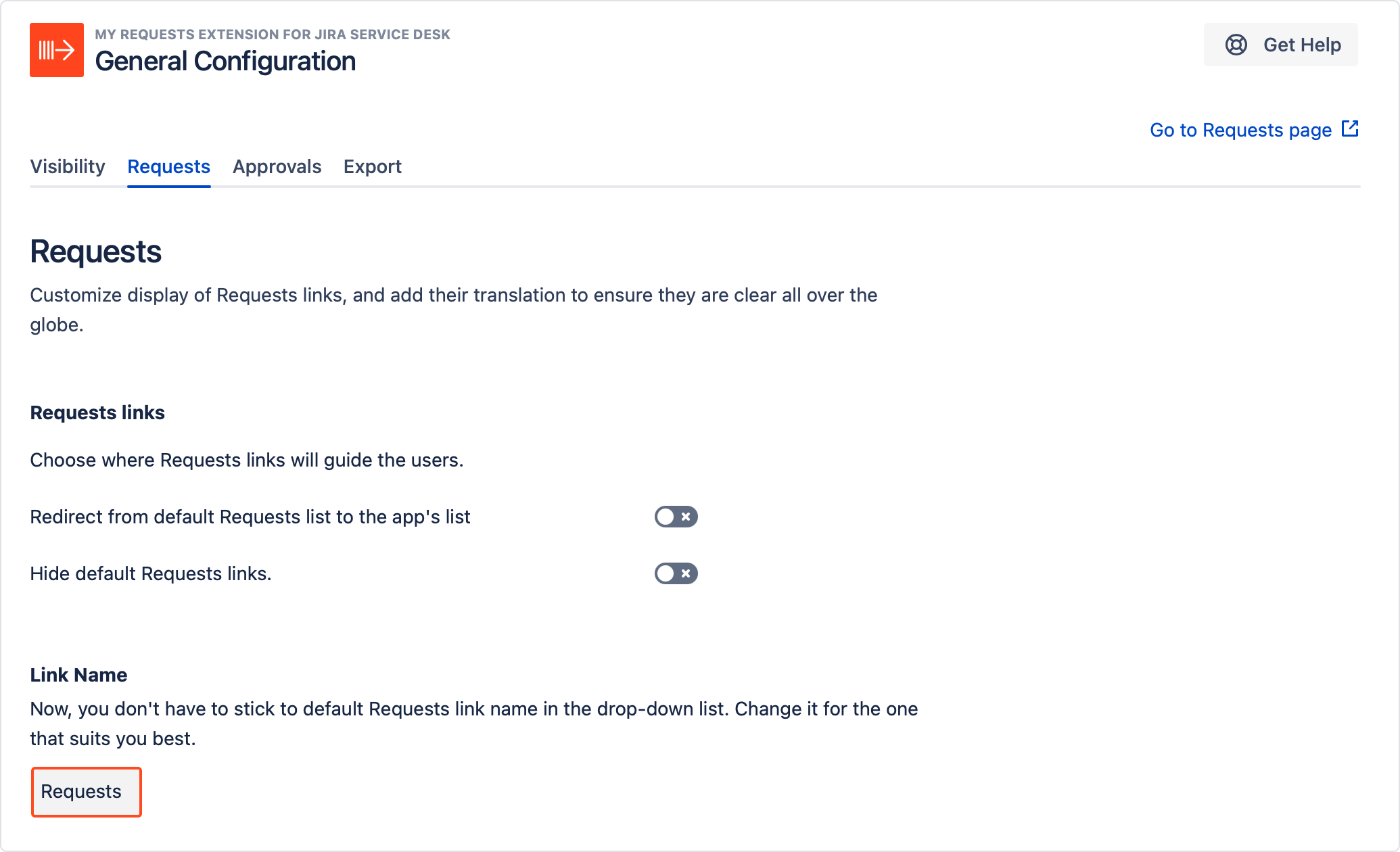
You can set your custom name for your Requests link.
Steps
- Click on the field below.
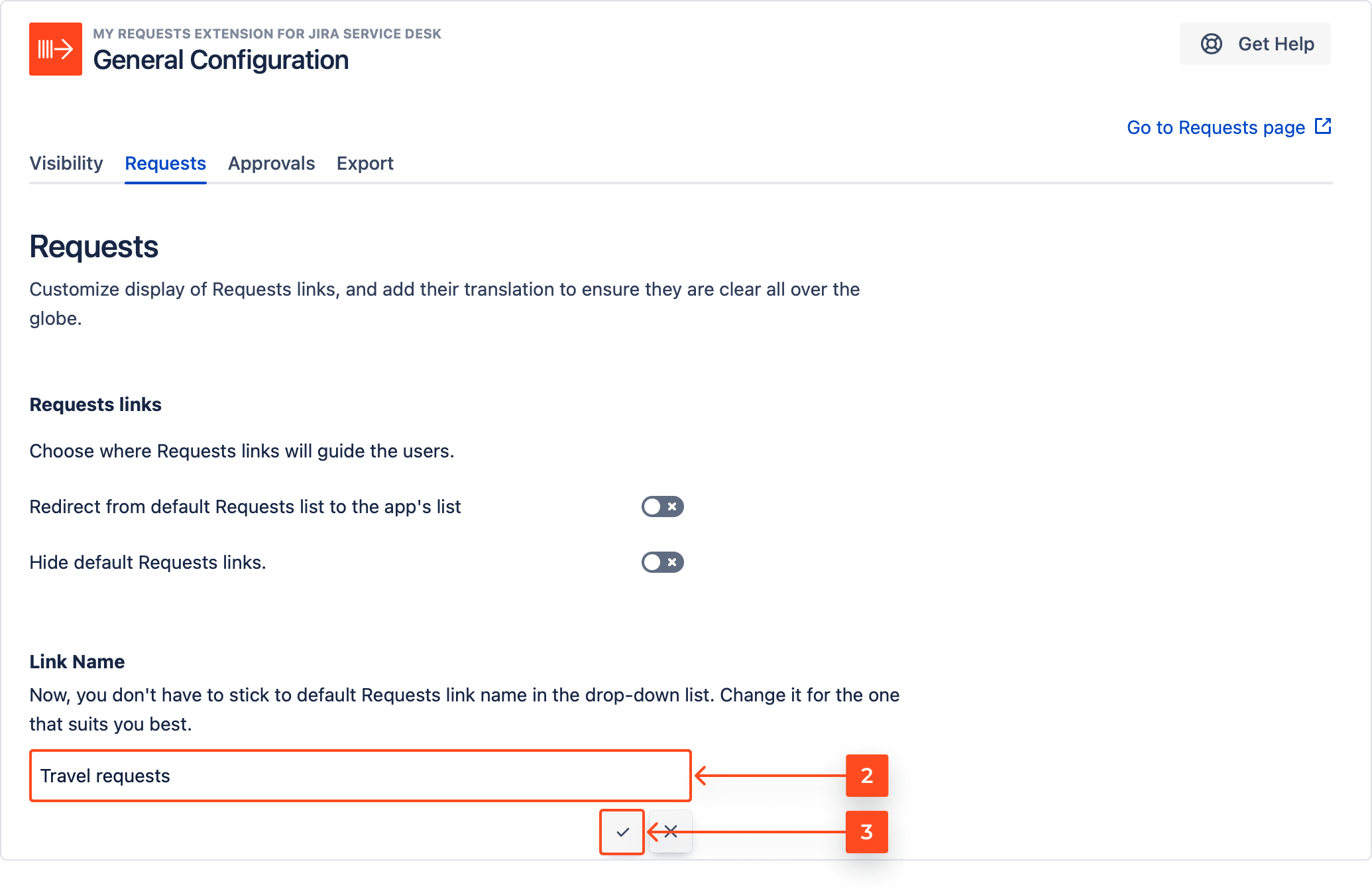
- Type in the new name.
- Click on the tick icon to save changes.
Result
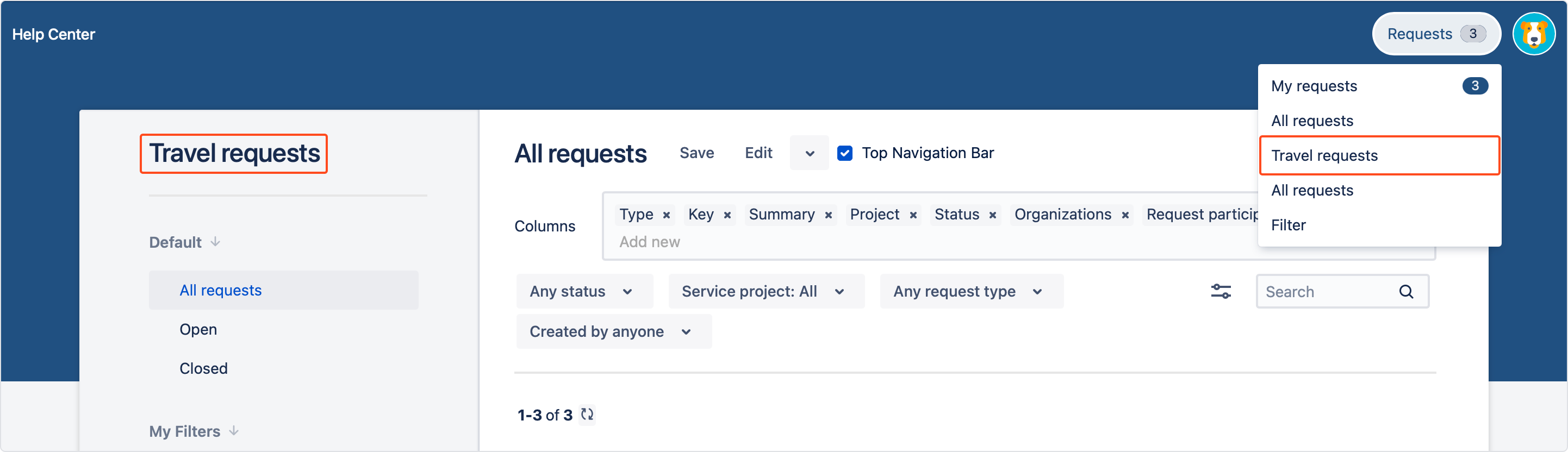
The custom name is set is displayed on the Customer Portal in the top-right corner of the screen.
Translation
You can provide a set of translations of your Requests link that will later be used throughout the app.
Steps
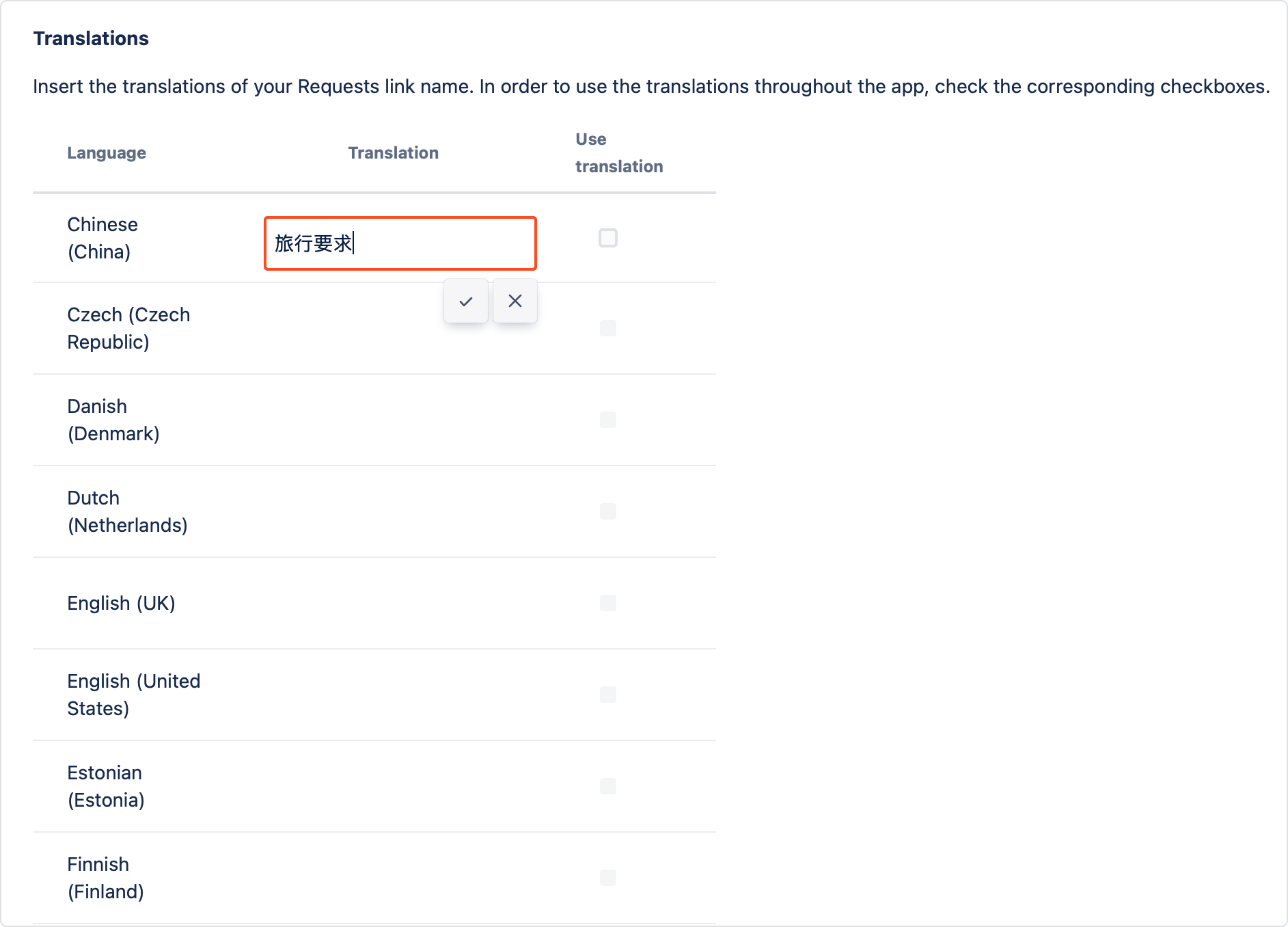
- Scroll down and find the language you want the link to be translated to.

- Insert the translation.
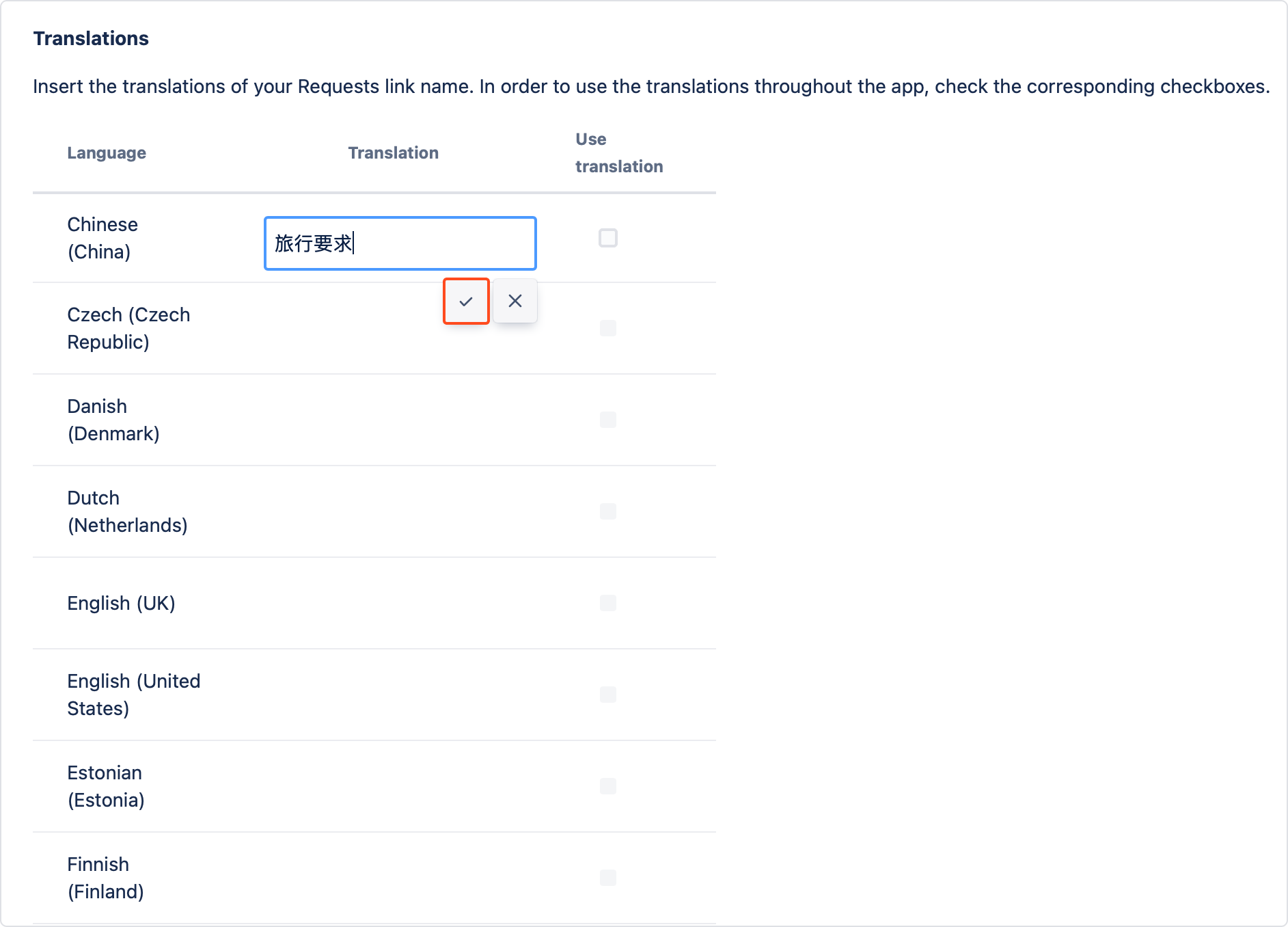
- Click on the tick icon to confirm translation.
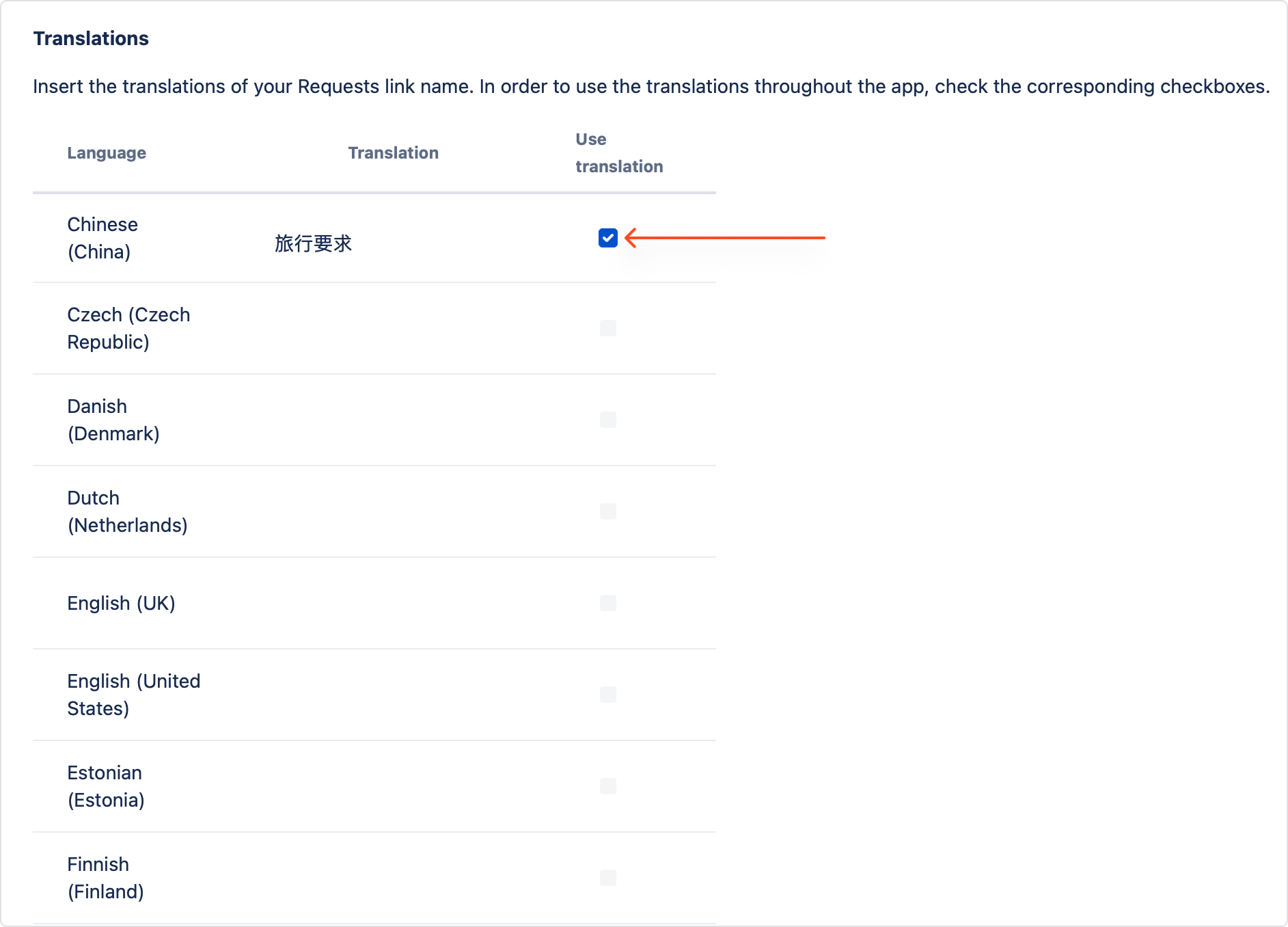
- Check the box next to a translation to use it in the app.
Result
The translation is added.
The translation which customers see depends on the language they use on their Customer Portal profile.
If you can’t find the answer you need in our documentation, raise a support request.
